Quick start · about 2 minutes
Get a point cloud on screen and explore it
You can try the viewer without preparing a file. Open the guided example, move around the scan, then try the same controls with your own data.
Try it with an example
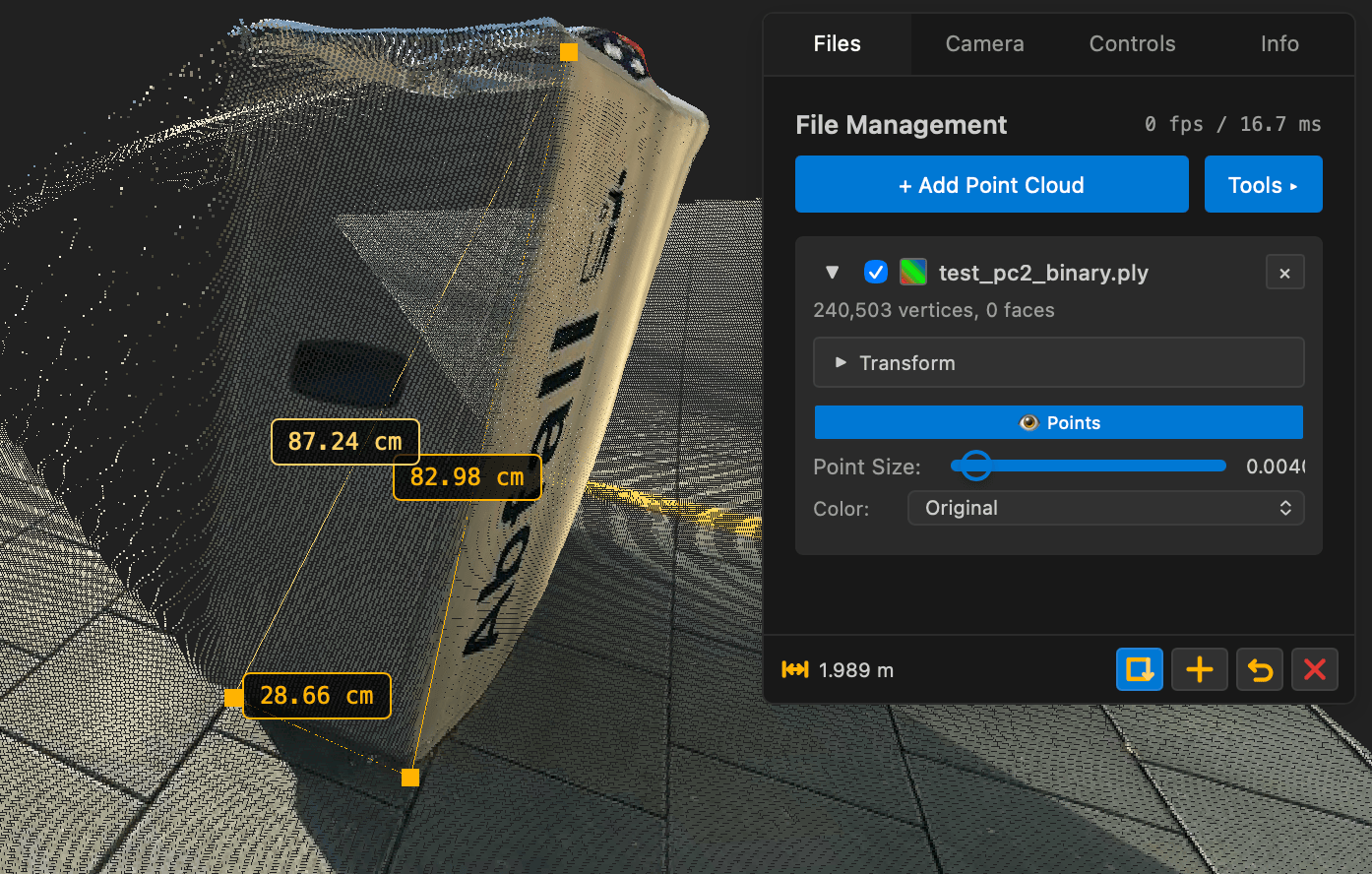
- Open the viewer and choose Guided example on the welcome screen. It loads a measured point cloud.
- Drag to rotate, scroll to zoom, and double-click a point to rotate around that spot. Press F to fit the loaded objects in view.
- In the Files tab, expand the object. Try its visibility checkbox, Point Size slider and Color menu.
Open your own file
Choose + Add Point Cloud or drop files onto the viewer. For a glTF model with separate textures or binary buffers, select those supporting files together with the model. Local files stay in your browser.
Common starting points are PLY, XYZ, PCD, LAS/LAZ or E57 for point clouds; OBJ, STL or glTF/GLB for meshes. Depth images and Gaussian splats are supported too. Check the full format list if a file does not open as expected.
Compare two scans
Add a second point cloud with + Add Point Cloud. Use each file’s checkbox to show or hide it; Shift-click a checkbox to isolate that file. Once two point clouds are loaded, open Tools → Align point clouds to bring them together.
Continue in the viewer with an AI agent
An agent connected to the local MCP bridge can open this viewer and keep controlling the scene it opened. It can inspect objects, move the camera, change appearance, select points and request a picture without clicking viewer controls. You can still use the viewer normally.
- Install the
3d-visualizerPython package with itsmcpextra from the project source, then configure your MCP client to launch3d-visualizer-browser-mcp. - Ask the agent to call
pair_3d_websiteand open the returned link. To continue in an already open viewer tab, it passes that tab's URL ascurrent_urland navigates the same tab to the returned link. Your browser may ask for permission to connect to an app on your device. - The agent uses the returned
scene_idwithinspect_3d_sceneornavigate_3d_view. You can continue using the same viewer alongside it.
See the MCP setup examples for local development and client configuration.
If the view looks wrong
- Nothing visible? Press F to fit the scene and check the file’s visibility checkbox.
- Points too faint or dense? Adjust Point Size or try a different Color mode in the file controls.
- Need the full manual? See the getting started documentation.